

How to Install and Configure Unilink eSIM on iOS and Android
Important to know before installation
Install in advance: We recommend adding the eSIM profile at home before your flight using a stable Wi-Fi network.
"Activating..." or "Activation Failed" before departure is normal: The profile is simply waiting to connect to local cell towers upon arrival in your destination country.
Validity and data usage: Your data package and plan validity start counting only after the first connection to a network abroad.
Instructions for iOS (iPhone / iPad)
Profile installation:
Open the Unilink app > go to the My eSIMs tab > tap Install eSIM (direct install), or use the direct installation link / scan the QR code.
Line activation and roaming:
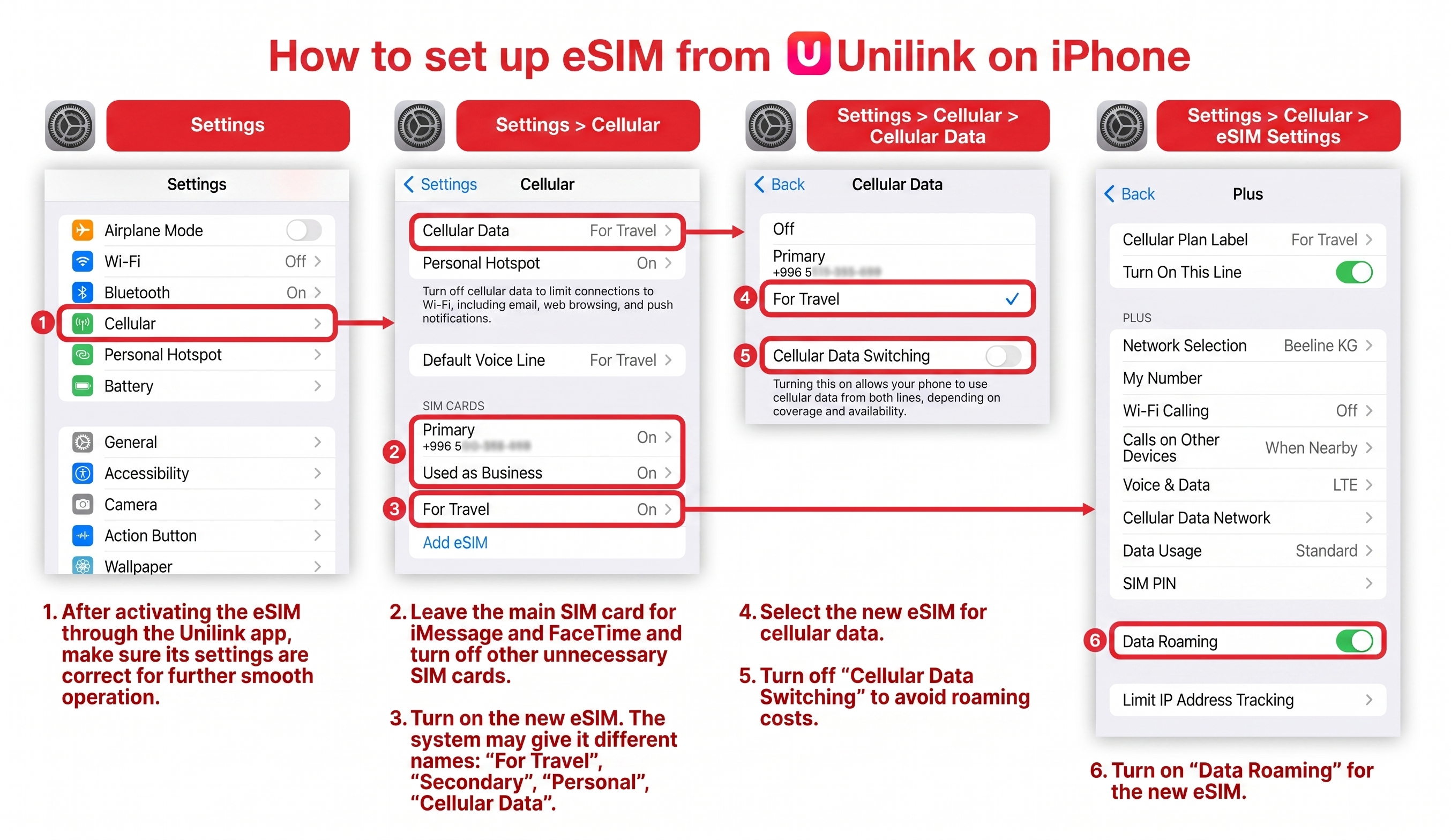
Go to Settings > Cellular (or Mobile Data).
Under the SIMs section, select your Unilink profile (often labeled as Travel, Personal, or Secondary).
Turn on the toggle for Turn On This Line.
Tap into the profile settings and make sure to turn on Data Roaming (this can be safely enabled before your flight).
Internet setup (upon arrival):
Go to Settings > Cellular > Cellular Data and select Unilink eSIM.
Make sure to turn off "Allow Cellular Data Switching" to prevent unexpected roaming charges from your primary carrier.
Video instructions for iPhone
Instructions for Android (Samsung, Xiaomi, Google Pixel, etc.)
Profile installation:
Open the Unilink app > go to My eSIMs > tap Install eSIM (or scan the QR code using your camera / import the QR code image from your gallery).
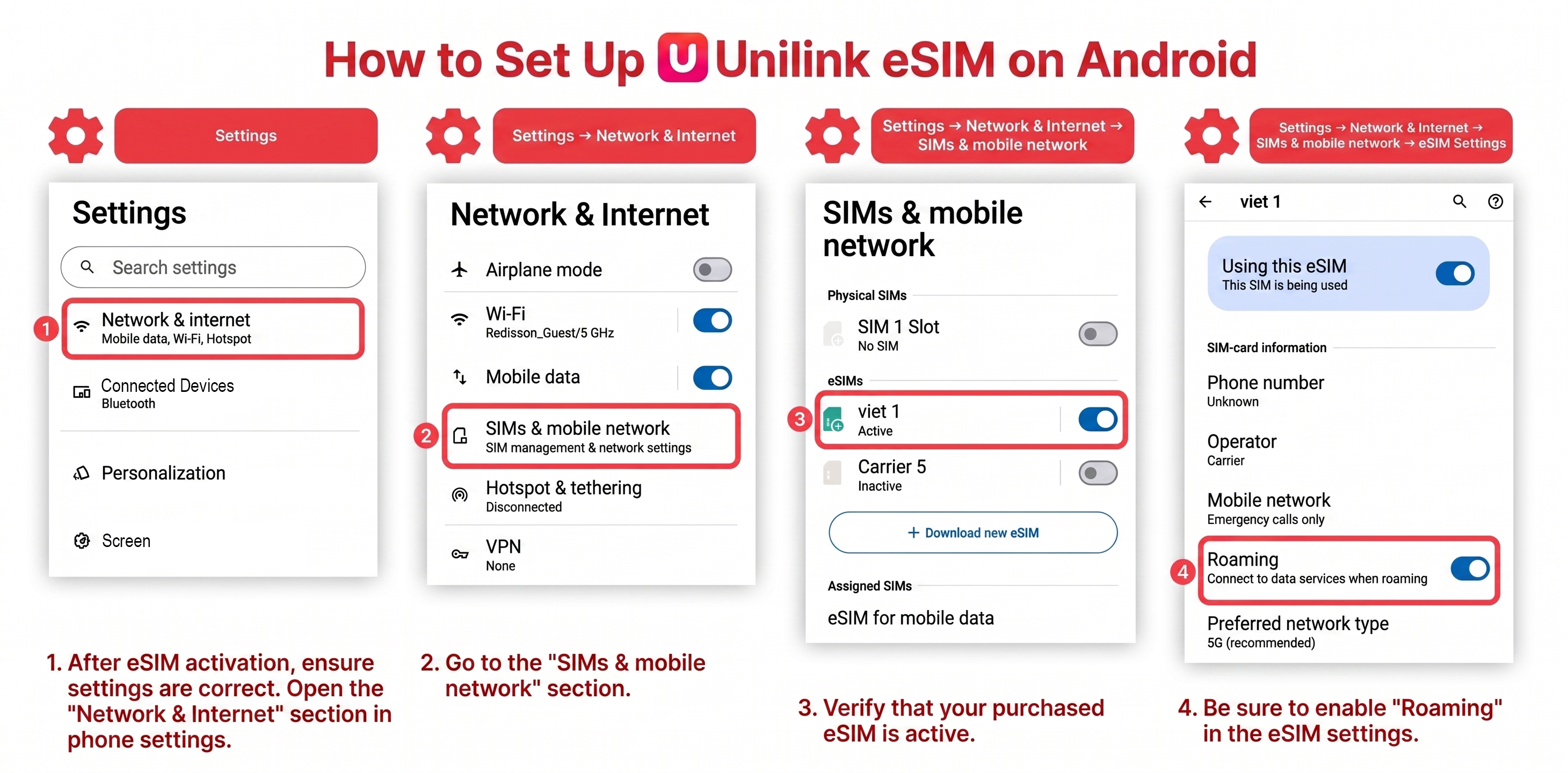
Or manually: Go to Settings > Connections (or SIM cards & mobile networks) > SIM manager > Add eSIM (Add mobile plan).
Line activation and roaming:
Turn on the added eSIM in the SIM manager.
Go to Settings > Connections > Mobile networks and turn on Data roaming (set Roaming data access to "Always" if prompted).
Select for mobile internet:
In the SIM manager, set Primary SIM / Mobile data to your Unilink eSIM profile (upon arrival at your destination).
What to do if the internet does not work upon arrival
Toggle Airplane Mode ON and OFF for 20–30 seconds.
Restart your device.
If the connection is not established, message us here in the chat — our support team will verify your line status and profile configuration.